Easy Mouse Connect: One Mouse and Keyboard Across Two Windows PCs
Pair two Windows PCs for mouse and keyboard sharing, with opt-in clipboard and file transfers.
A second PC often comes with a second mouse and keyboard, even when both machines sit on the same desk. Easy Mouse Connect is one of my projects for that setup: it shares mouse and keyboard input between two Windows PCs over a direct, authenticated and encrypted connection. Move through the configured screen edge and the other computer receives input.
Easy Mouse Connect 0.4.1 is available for Windows 11 x64. The release was promoted from preview after several days of maintainer-reported two-PC use; the tested downloads and checksums stayed unchanged, including the preview text in their filenames. It also supports optional clipboard sharing and approved file transfers, but neither is necessary for the basic input handoff.
What crosses the screen edge
Each PC runs its own copy and retains its own identity. Set the peer’s physical position to the left or right, enable desk sharing and edge movement, and push the pointer outward through the exposed edge. The app handles local multi-monitor arrangements, including negative coordinates, stacked displays, and gaps. Movement between monitors attached to the same PC stays local.
The distinction from remote desktop is useful: both machines keep their own screens and user sessions. This is a shared-input setup for a desk, not a way to view a remote desktop over the network. The sending pointer remains parked at its screen edge, and returning between PCs does not preserve the exact vertical position. Those are documented limitations, not settings to hunt for.
Install and pair the two PCs
The repository’s unpaired browser preview shows the settings layout below. Pairing and input forwarding require the desktop app.
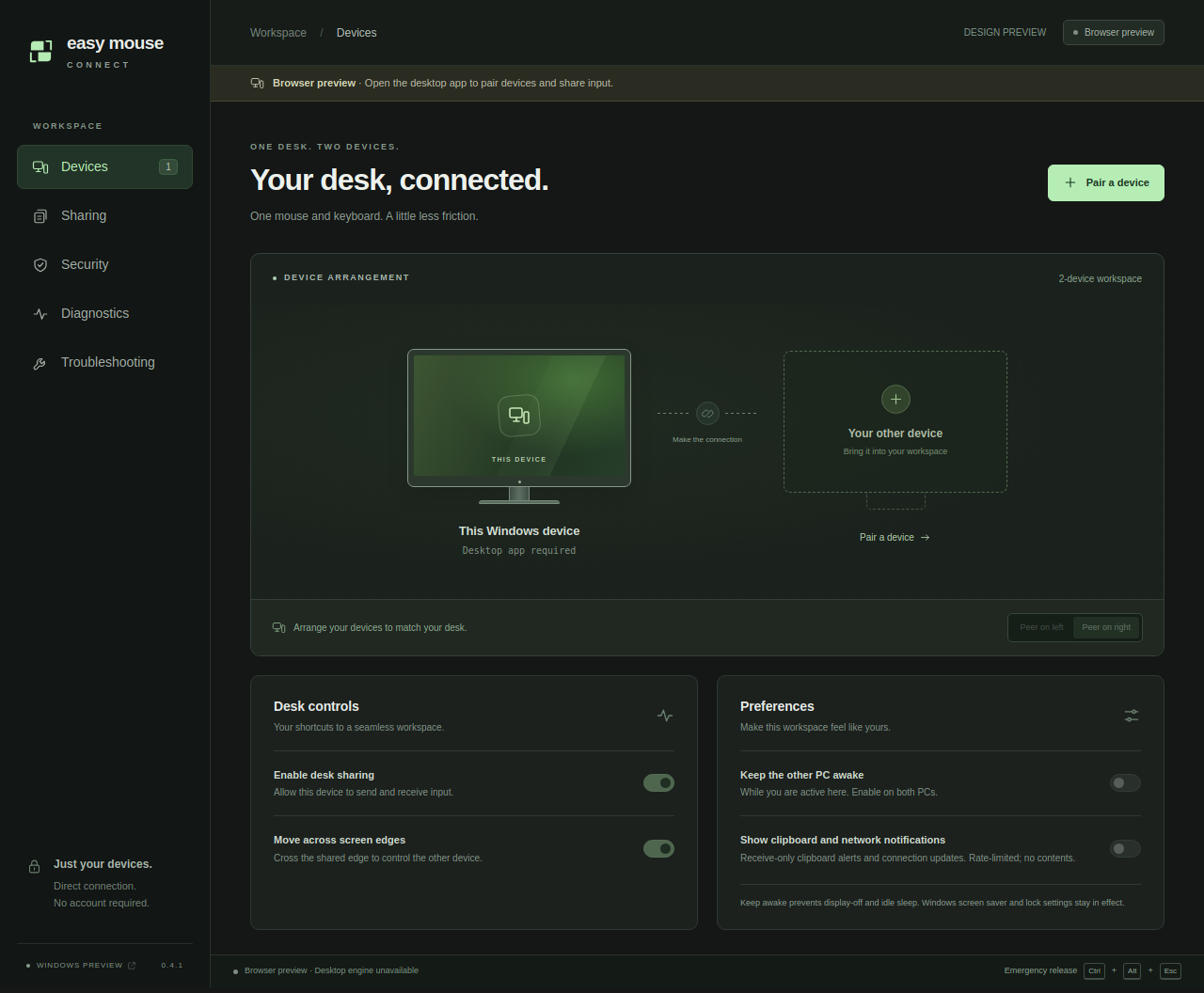
Use Windows 11 x64 on both machines, with the WebView2 Runtime installed. Choose the same 0.4.1 build on each PC from GitHub Releases, either the per-user installer or portable executable, together with START-HERE.txt. The release guide explains the artifacts and checksum verification. The packages are unsigned, so Windows may show a publisher or reputation warning.
Version compatibility matters. 0.4.0 and 0.4.1 use the EMC02 wire version and cannot connect to 0.3.7. The two newer versions are wire-compatible, but the project recommends 0.4.1 on both for the updated clipboard behavior. Existing paired identities are retained across the documented upgrade path; do not forget a working peer merely to update.
- Install or run a local copy on each PC. Do not copy identity or settings files from one machine to the other.
- Make the destination reachable on TCP port 24859. A routed LAN works, as can an existing VPN; entering a private IP address does not create a route. The network guide covers route and firewall checks.
- On PC B, open Devices → Pair a device → Show a pairing code → Generate code. On PC A, select Connect to a device, enter B’s reachable IP address and the 12-character code. It expires after five minutes or five failed or abandoned attempts.
- Set Peer on left/right on each PC to match the physical desk arrangement. The settings should be opposite. Enable Desk sharing and Move across screen edges.
- Keep local input available on both PCs and test Ctrl+Alt+Escape before relying on remote control. Release held keys and buttons, then move outward through the configured edge.
The PC that entered the code initiates reconnects while sharing is enabled. Pairing establishes a stored device identity; an IP address or device name alone is not that identity. Pair only computers you trust, because sharing input grants control of the signed-in desktop.
If Windows Firewall blocks the connection, Troubleshooting → Add a firewall rule requests administrator approval for a separate helper. The documented rule is limited to the executable, one literal peer IP, TCP 24859, and Private/Domain profiles. The application itself remains a normal user process; the helper does not create a network route or open Public profiles.
Clipboard and files are separate choices
Text clipboard, image clipboard, and file transfer are independent permissions, off by default. Enable the desired option on both PCs. After enabling clipboard sharing, copy new content: the existing clipboard becomes a baseline and is not sent immediately.
Text is limited to 1 MiB of UTF-8. Image clipboard sharing sends images as PNG, with a 16 MiB limit on the source image and canonical PNG and additional decoded-size and dimension limits. The receiver may create a managed local PNG for Explorer paste. That cache is ordinary user-profile data, so treat copied images accordingly; it is not encrypted identity storage. If the original filename and format matter, use file transfer instead.
To send a file, enable transfers on both PCs, drop a regular file into the app, select Send file, and accept it on the receiver. Each file must be smaller than 100,000,000 bytes. The receiver gets a separate generated destination directory, existing files are not overwritten, and received files are not opened automatically. Interrupted transfers do not resume automatically. Dragging directly from one Explorer window to the other is not implemented. The README gives the precise image and transfer limits.
Know the current boundaries
The app runs in the Windows user session. It does not control UAC prompts, the lock screen, secure desktops, or elevated applications. Automatic discovery and NAT traversal are also absent: you supply a reachable address and manage the route. Closing the window leaves the app in the tray; use Pause, Stop sharing, or tray Quit when you intend to stop it. Forget device revokes the stored trust and requires pairing again.
The 0.4.1 release notes report several days of normal two-PC Windows 11 use without significant issues. That experience supports the release, while the manual acceptance record identifies checks with narrower or incomplete coverage. Test your own hardware, scaling, and input devices before removing the backup keyboard.
The project uses Rust for networking and native input, with a Tauri 2 settings interface. It is distributed under the MIT License. For a two-PC Windows desk, the tradeoff is straightforward: a direct connection and explicit pairing, in exchange for configuring the network and checking that the current feature set fits your desk.